
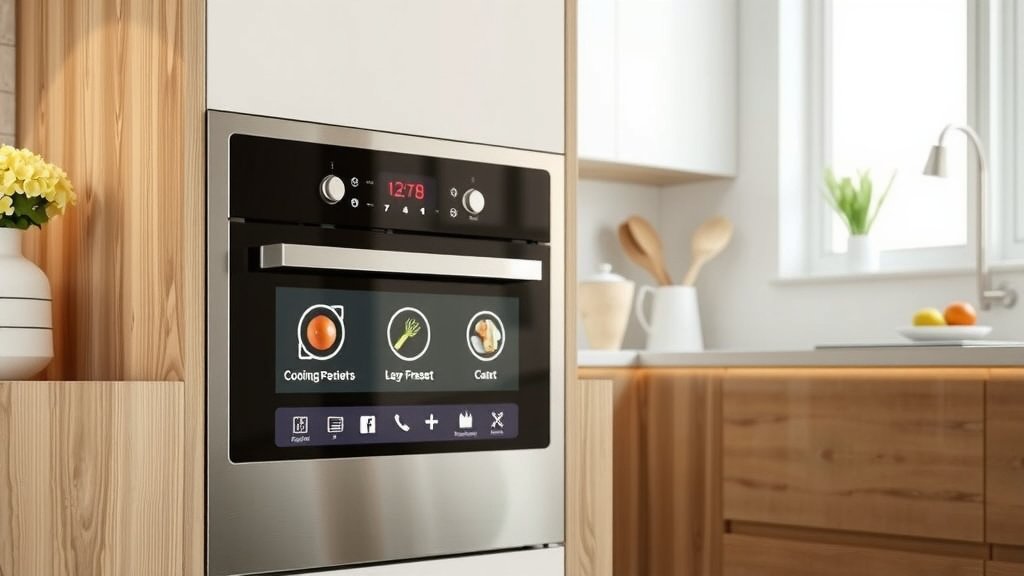
You can update cooking presets on your smart oven primarily through its dedicated mobile app or directly via the oven’s touch control panel, typically found in the settings or custom programs menu.
Often, this process involves selecting a preset to edit or creating a new one, then adjusting temperature, time, and cooking modes before saving your changes.
- Updating smart oven cooking presets typically involves using your mobile app or the oven’s control panel.
- You will usually find options to customize existing presets or create new ones in the settings menu.
- Remember to save your adjusted temperature, time, and cooking mode settings after making changes.
- Always check your oven’s specific user manual for precise, model-specific instructions.
- Customizing presets helps you achieve perfect results for your favorite recipes every time.
How To Update Cooking Presets On Smart Oven?
Updating cooking presets on your smart oven usually involves using its connected mobile app or directly accessing the control panel. This allows you to tailor cooking settings for your favorite dishes.
Why Customize Your Oven’s Presets?
Imagine your oven knows exactly how you like your cookies – crispy outside, chewy inside. Customizing presets makes this a reality. It saves time, reduces guesswork, and ensures consistent, delicious results for your signature dishes.
Many smart oven owners, we found, love this feature for specific family recipes. It’s like having a sous chef who remembers everything for you.
General Steps: Updating Via Mobile App
The mobile app is often the easiest way to manage your smart oven. It provides a user-friendly interface right on your phone.
First, make sure your smart oven is connected to your home Wi-Fi and paired with its dedicated app. If not, you’ll need to set that up first.
Accessing The App’s Settings
Open your oven’s companion app on your smartphone or tablet. Look for a section like “Settings,” “My Oven,” or “Programs.”
This is where you’ll find options related to your oven’s functions and customization features.
Finding The Presets Menu
Within the oven’s app section, search for “Cooking Presets,” “Custom Recipes,” or “My Programs.” The exact wording can differ between brands.
You might see a list of pre-installed presets or options to add new ones.
Editing Or Creating A New Preset
Select an existing preset you want to modify, or choose an option to create a “New Recipe” or “Add Custom Program.”
You’ll then be prompted to input cooking details like temperature, cooking time, and specific cooking modes (e.g., bake, roast, convection).
Saving Your Changes
Once you’ve set your desired parameters, look for a “Save” or “Apply” button. Give your new or updated preset a memorable name, like “Perfect Chocolate Chip Cookies.”
This allows you to easily find and select it next time you cook that dish.
General Steps: Updating Via Oven Control Panel
Sometimes, it’s quicker to adjust settings directly on the oven. Most smart ovens have intuitive touchscreens or dial controls.
Ensure your oven is not currently running a cooking cycle before you begin.
Navigating The Oven Menu
On your oven’s display panel, find a “Settings” or “Options” button. It might be represented by a gear icon or a menu icon.
Pressing it will usually bring up a list of customizable features.
Locating Preset Options
Scroll through the menu to find entries such as “Custom Presets,” “My Recipes,” or “Program Settings.”
You are looking for anything that lets you define or change cooking sequences.
Adjusting And Storing Settings
Choose an existing preset to edit or an empty slot to create a new one. Use the on-screen keypad or dials to set the temperature, cooking duration, and cooking function.
Confirm your selections and then save the new preset, usually by giving it a name.
Tips for Different Smart Oven Brands
While the steps are similar, each brand has its quirks. Research often points to slight variations in menu names (User Manuals, Brand Support pages).
Always consult your oven’s specific user manual for the most accurate, step-by-step instructions. It’s your best friend for oven operations.
Here’s a quick look at common features you might encounter:
| Feature | Description | Typical Use Case |
|---|---|---|
| Temperature Adjustment | Change the target heat level. | Fine-tuning for different ingredients. |
| Time Modification | Set desired cooking duration. | Adapting to varying food thicknesses. |
| Cooking Mode Selection | Choose bake, roast, convection, broil. | Optimizing for specific recipe requirements. |
| Delay Start | Schedule cooking to begin later. | Preparing meals ahead of time. |
| Keep Warm | Automatically switch to a low heat. | Holding food at serving temperature. |
Troubleshooting Common Update Issues
Sometimes things don’t go as planned. Don’t worry, many problems have simple solutions.
Is your oven not recognizing the new preset? Maybe your Wi-Fi connection is spotty. A weak signal can prevent the app from syncing with your oven.
Connectivity Checks
Make sure both your oven and your smart device are connected to a strong, stable Wi-Fi network. Sometimes a quick router restart can work wonders.
Also, check if your oven’s app is up to date; outdated apps can cause glitches (Manufacturer Support Forums).
Firmware Updates
Just like your phone, your smart oven needs occasional software updates. These “firmware” updates fix bugs and sometimes add new features.
Check your oven’s app or control panel for any pending firmware updates. Many experts say this can resolve unexpected issues.
Restarting Your Oven
A simple restart can sometimes clear minor software hitches. You can typically do this by turning off the oven at the circuit breaker for a few minutes, then turning it back on.
Think of it as giving your oven a fresh start, just like rebooting your computer.
Benefits of Well-Managed Presets
Once you master your presets, cooking becomes a breeze. What could be better than consistent, perfect results?
- Time Saving: No need to manually adjust settings for every dish.
- Consistency: Achieve the same perfect result every time you cook a specific recipe.
- Reduced Errors: Less chance of forgetting a step or setting the wrong temperature.
- Convenience: Start complex cooking sequences with a single tap.
- Recipe Sharing: Some apps allow you to share custom presets with others.
Safety First: Best Practices
Always prioritize safety when working with appliances. It’s a key part of responsible oven ownership.
Even though you’re just updating software, using an oven requires attention.
Pre-Update Checklist
Before you dive into changing settings, a quick check can save headaches.
- Ensure oven is off and cool.
- Have your user manual nearby.
- Confirm your phone is charged.
- Check Wi-Fi stability.
- Know what settings you want to change.
Monitoring After Updates
After you update a preset, especially a new custom one, it’s wise to supervise the first few uses. Does it cook as expected? Is the timing accurate?
This ensures your new settings are working correctly and producing the desired outcome (Consumer Reports).
Conclusion
Updating cooking presets on your smart oven is a powerful way to personalize your cooking experience. Whether you use the mobile app or the oven’s control panel, the process typically involves navigating to the preset menu, adjusting the settings, and saving your changes. This simple customization can bring a new level of ease and consistency to your kitchen. By following these steps and checking your specific oven’s manual, you’ll be well on your way to perfectly tailored meals every time.
How often should I update my smart oven’s firmware?
You should update your smart oven’s firmware whenever a new version is available. These updates often improve performance, add new features, and fix security vulnerabilities. Your oven’s app will usually notify you when an update is ready.
Can I revert to the original factory presets if I make a mistake?
Yes, most smart ovens allow you to restore factory default settings. This option is typically found in the main settings menu of either the mobile app or directly on the oven’s control panel. However, doing so will erase all your custom-saved presets.
What if my smart oven app isn’t syncing with the oven?
First, check both your phone and oven’s Wi-Fi connection to ensure they are stable. Try restarting your phone, the oven (by briefly unplugging it or cutting power at the breaker), and your home router. Also, make sure your oven app is the latest version.
Are custom presets shareable with other family members or ovens?
Some advanced smart oven apps offer features to share custom recipes or presets within a family account or even with other users of the same brand. Check your specific oven’s app features or user manual to see if this functionality is available for your model.
Do smart oven presets account for different food quantities?
No, a preset typically saves a specific time and temperature. While helpful, it doesn’t automatically adjust for larger or smaller food quantities. You’ll still need to manually increase or decrease cooking time based on the amount of food you are preparing, even with a preset.
