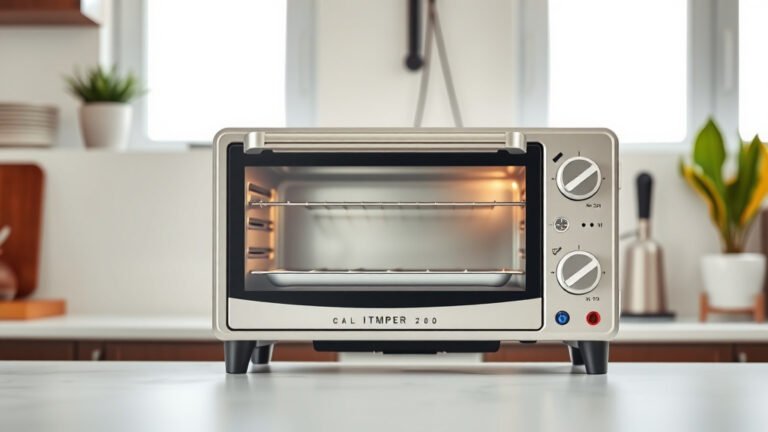
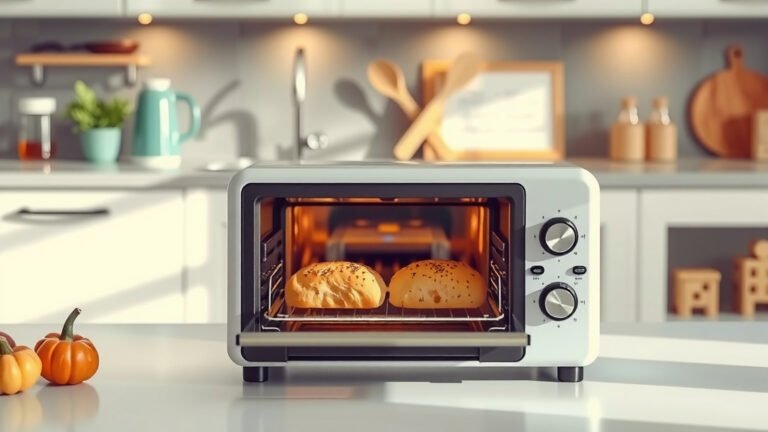
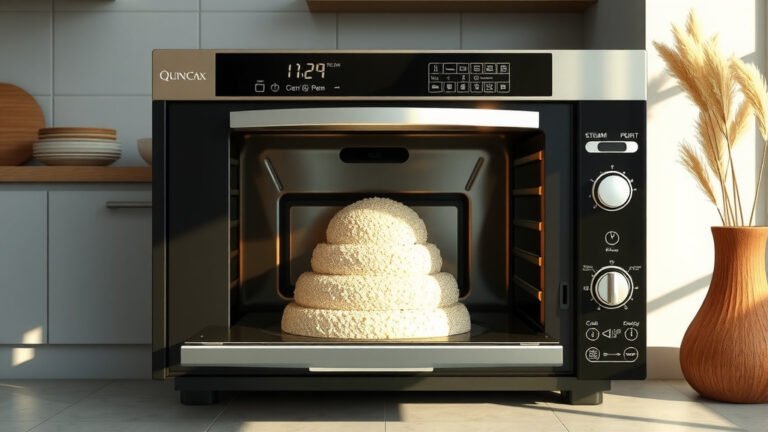
To set up a smart oven, download its companion app, connect the oven to power, then pair the device to your home Wi-Fi network through the app for smart functionalities.
Most smart ovens guide you through simple on-screen prompts or app instructions, making the smart oven setup process straightforward.
Here’s a quick summary to get you started:
- Make sure your home Wi-Fi is strong where the oven will sit.
- Unpack and install the oven physically first, just like a regular appliance.
- Download the manufacturer’s specific app to your smartphone or tablet.
- Follow the app’s steps to connect your smart oven to your Wi-Fi and pair it.
- Enjoy features like remote preheating, recipe integration, and voice control!
How To Set Up A Smart Oven?
Setting up a smart oven involves a few digital steps after its physical installation, linking it to your home Wi-Fi and smartphone app.
You’ll connect it through its specific app, opening up a world of convenient cooking features.
What Exactly Is a Smart Oven?
Picture your everyday oven, but with a brain and a phone line. That’s essentially a smart oven!
These appliances connect to your home Wi-Fi, allowing you to control them remotely using an app on your smartphone or tablet.
They bring new levels of convenience, letting you preheat on the way home or check your dinner’s progress from the living room.
Before You Unbox: Essential Preparations
Before you even think about pulling that shiny new oven out of its box, a few checks can save you headaches later.
Think of it like laying the groundwork for a smooth cooking experience. We found that a little preparation makes a big difference.
Check Your Wi-Fi Signal
Your smart oven needs a solid Wi-Fi connection to shine. Is your Wi-Fi router close enough to the oven’s intended spot?
Many experts say a weak signal can cause pairing issues or slow response times (PCMag).
Test the signal strength in the kitchen where the oven will live. A quick check with your phone often works well.
Locate the Best Spot
Just like any oven, it needs a proper home. Ensure there’s adequate space and ventilation according to the manufacturer’s guidelines.
Remember, this isn’t just about fitting it in; it’s about safety and optimal performance.
Verify Power Requirements
Smart ovens, like their traditional counterparts, need specific electrical connections.
Most require a dedicated 240-volt circuit. Check your owner’s manual for exact voltage and amperage.
This is a critical safety step you shouldn’t overlook. If you’re unsure, consulting an electrician is wise.
Physical Installation: Getting It Into Place
This part is much like installing any standard oven. You’ll unbox it carefully, remove all packaging materials, and position it in its dedicated space.
Always follow the manufacturer’s instructions for physical installation. It’s important to make sure it’s level and secure.
Connecting Your Smart Oven to Power
Once your oven is physically in place, it’s time to plug it in. If it’s a hardwired unit, a qualified electrician should handle the connection.
For plug-in models, simply insert the plug into the correct wall outlet. Listen for a chime or see the display light up.
The Brains of the Operation: Downloading the App
Now for the smart part! Head to your smartphone’s app store (Apple App Store or Google Play Store).
Search for the official app from your oven’s manufacturer. It will likely have the brand name in its title, like “Whirlpool Scan-to-Cook” or “GE Appliances Kitchen App.”
Download and install it. This app acts as your smart oven’s remote control and dashboard.
Pairing Your Oven: The Digital Handshake
Open the app you just downloaded. You’ll usually be prompted to create an account or log in.
Follow the on-screen instructions to “Add a Device” or “Connect New Appliance.” The app will then guide you through connecting your oven to your home Wi-Fi network.
This might involve finding a specific network name (SSID) broadcast by the oven or scanning a QR code on the appliance itself.
Dealing with Connection Hiccups
Sometimes, the Wi-Fi pairing doesn’t go smoothly. Don’t panic!
We found that common issues include incorrect Wi-Fi passwords, the oven being too far from the router, or a 5GHz Wi-Fi network when the oven needs 2.4GHz.
Try restarting your router, confirming your Wi-Fi band, or moving your router closer temporarily.
First Steps After Connection: Initial Settings
Once paired, the app might ask you to name your oven (e.g., “Kitchen Oven”), set the time, or perform an initial calibration.
These steps personalize your experience and ensure accurate cooking. Some ovens will also download firmware updates at this stage.
Exploring Smart Features: Beyond Basic Baking
Your smart oven is now ready to impress! Take some time to explore the app.
You’ll likely find features like remote preheating, cooking timers, recipe integration, and even diagnostic tools.
It’s like having a sous chef living in your phone! Many people enjoy the convenience of adjusting settings from anywhere in the house.
A Quick Checklist for Smart Oven Setup
Let’s make sure you’ve covered all your bases for a smooth setup:
- Confirm stable Wi-Fi signal in the kitchen.
- Ensure proper power connection is ready.
- Unpack all components and remove packing.
- Install oven securely in its dedicated space.
- Download the correct manufacturer’s app.
- Create an account and log into the app.
- Follow app steps to pair oven to Wi-Fi.
- Perform any required initial setup or calibration.
- Test remote control features via the app.
Troubleshooting Common Setup Issues
Even with careful planning, things can sometimes go sideways. Here are common problems and quick solutions:
| Problem | Potential Solution |
|---|---|
| Oven won’t connect to Wi-Fi | Check Wi-Fi password, router distance, and 2.4/5GHz band. Restart router. |
| App not finding oven | Ensure oven is powered on and in pairing mode. Close and reopen the app. |
| Remote features not working | Confirm oven and phone are both connected to the internet. Check app permissions. |
| Display not lighting up | Verify oven is properly plugged in and receiving power. Check circuit breaker. |
Smart Oven Benefits: Why Go Smart?
Beyond the “wow” factor, smart ovens genuinely make cooking easier and more efficient. We found that users appreciate the added control and flexibility.
Think about how nice it is to preheat your oven while you’re finishing up a phone call or wrangling the kids. That’s the power of smart appliances.
Conclusion
Setting up your smart oven might seem like a few extra steps initially, but it truly unlocks a world of convenience in your kitchen. By following these clear guidelines, you’ll have your oven connected and ready for smarter cooking in no time.
Take a moment to enjoy the possibilities. From remote preheating to guided recipes, your smart oven is now an intuitive partner in creating delicious meals. Happy cooking!
How do I connect my smart oven to my home network?
You connect your smart oven to your home network by downloading its specific companion app, then using the app’s guided steps to find your oven and link it to your Wi-Fi password.
What if my smart oven loses its Wi-Fi connection?
If your smart oven loses Wi-Fi, try restarting your home router and checking the oven’s settings in its app. Sometimes, simply reconnecting through the app can fix it. Ensure no recent changes were made to your Wi-Fi password.
Do all smart ovens use the same app?
No, smart ovens typically use a unique app developed by their specific manufacturer. For example, a Samsung smart oven will use the Samsung SmartThings app, while an LG oven will use the LG ThinQ app.
Can I control my smart oven with voice commands?
Many smart ovens offer voice control capabilities, often through integration with smart home assistants like Amazon Alexa or Google Assistant. You’ll usually need to enable this feature within your oven’s companion app and link it to your chosen voice assistant.
Is a smart oven worth the extra cost?
The worth of a smart oven depends on your lifestyle and how much you value convenience and advanced features. Many people find the remote control, recipe integration, and precise cooking options to be a significant benefit, justifying the investment for a more modern kitchen experience.