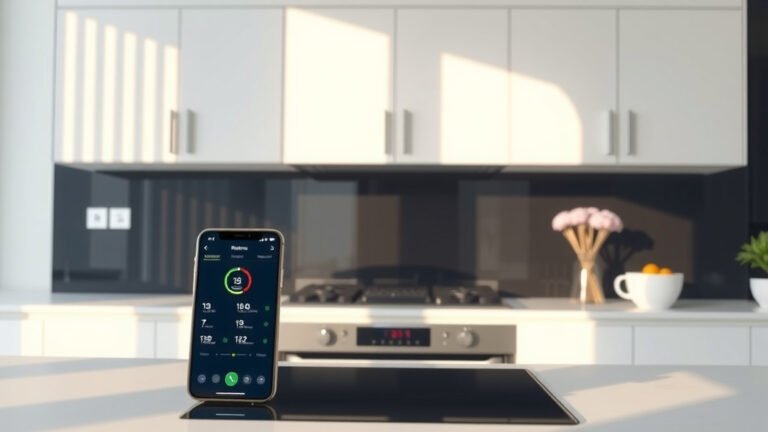
You can get notifications from your smart oven on your phone by first connecting your oven to your home Wi-Fi network and then downloading and setting up the manufacturer’s companion app on your smartphone. The app will guide you through pairing your oven and enabling push notifications for cooking cycles.
Once connected, you’ll need to grant the app permission to send alerts in your phone’s settings to ensure you receive timely updates about your cooking progress.
- To receive smart oven notifications, connect your oven to Wi-Fi and install its dedicated app.
- Pair the oven with the app, usually via Bluetooth or a setup code.
- Enable push notifications both within the oven app and in your phone’s system settings.
- Troubleshoot by checking Wi-Fi strength, app permissions, and oven connectivity status.
- Expect alerts for preheating completion, cooking timers, and potential error messages.
How To Get Notifications From Smart Oven On Phone?
You can receive notifications from your smart oven on your phone by connecting it to your Wi-Fi and using the dedicated mobile app. This setup allows your oven to communicate important updates directly to your device.
Why Smart Oven Notifications Matter to You
Imagine never burning dinner again because you missed the timer. Smart oven notifications can be a real game-changer for your kitchen routine. They bring convenience and peace of mind right to your pocket, letting you multitask without constant oven-watching.
We found that many people appreciate the added flexibility these alerts offer. Whether you’re in another room or even outside, your phone keeps you updated on your meal’s progress. This means less stress and more perfectly cooked dishes, don’t you agree?
Step One: Connecting Your Smart Oven to Your Home Wi-Fi
The first step is usually the most important: getting your oven online. Your smart oven needs to join your home’s Wi-Fi network to communicate with your phone. Think of it like giving your oven its own little internet connection.
Typically, you’ll find a Wi-Fi setup option in your oven’s display menu. Follow the on-screen prompts to select your network and enter your password. Make sure your oven is within a good range of your router for a stable connection. Weak signals can cause interruptions.
Step Two: Installing the Manufacturer’s Mobile App
Every smart oven brand has its own specific app designed to work with its appliances. We found that you’ll need to download this app from your phone’s app store (Google Play Store for Android or Apple App Store for iOS). Search for your oven’s brand name, like “GE SmartHQ” or “Whirlpool Scan-to-Cook.”
Once you’ve found the correct app, install it and create an account. This account will be your central hub for controlling and monitoring all your smart appliances. Many experts say creating a dedicated account helps with security and data management for your smart home devices.
Step Three: Pairing Your Oven with the App
After installing the app and logging in, the next logical step is pairing your oven. This process usually involves following on-screen instructions in the app. You might need to press a “connect” button on your oven or enter a code displayed on its screen into the app.
Some ovens use Bluetooth initially to help with the Wi-Fi setup, then switch to Wi-Fi for daily operation. It’s like a quick introduction before they settle into a longer relationship. Be patient during this step, as it can sometimes take a minute or two to establish the connection.
Enabling In-App Notifications: Your Alert Preferences
Once paired, dive into the app’s settings. Look for a section related to “Notifications” or “Alerts.” Here, you can customize what kind of notifications you want to receive. Do you want alerts for preheating completion, timer finished, or even oven errors? You decide!
Many apps allow you to choose between sound alerts, vibrations, or just silent notifications. We found that taking a moment to fine-tune these preferences will prevent you from getting overwhelmed with too many alerts, or missing important ones.
Granting Phone Permissions for Smart Oven Alerts
Even if you’ve enabled notifications within the oven app, your phone might still block them. You’ll need to go into your phone’s system settings. Find the “Apps & Notifications” section, locate your oven’s app, and then ensure that “Notifications” are toggled on.
Sometimes, your phone might ask for specific permissions, such as allowing sound or showing alerts on the lock screen. Research often connects these permissions with ensuring full functionality for third-party apps (Google Support, Apple Support). Granting them means you won’t miss a beat.
Common Reasons You Might Not Be Getting Alerts
Are your notifications not coming through? It can be frustrating, but usually, there’s a simple fix. Let’s look at a few common culprits:
- Wi-Fi Connection Issues: Is your oven still connected to your home network? Check the Wi-Fi status on the oven’s display.
- App Glitches: Try closing and reopening the oven app, or even uninstalling and reinstalling it.
- Phone Settings: Double-check your phone’s notification settings for the oven app.
- Oven Software: Make sure your oven’s firmware is up to date through the app.
- Power Outages: A temporary power loss can disrupt connectivity, requiring a re-check of settings.
Troubleshooting Checklist for No Notifications
Here’s a quick checklist to run through if you’re experiencing notification trouble:
- Is your smart oven powered on and connected to Wi-Fi?
- Is the manufacturer’s app installed and logged in?
- Is the oven successfully paired within the app?
- Are notifications enabled within the oven app’s settings?
- Are push notifications allowed for the app in your phone’s system settings?
- Is your phone connected to the internet (Wi-Fi or cellular data)?
- Have you restarted your phone or oven recently?
What Kinds of Notifications Can You Expect?
With everything set up correctly, your phone can become a culinary assistant. You’ll typically receive alerts for things like the oven reaching its preheating temperature, when your timer is about to expire, or when a cooking cycle has finished. Some ovens even alert you to potential issues like a door left ajar or a problem with a sensor.
Benefits of Staying Connected to Your Smart Oven
Staying connected offers more than just notifications. It gives you greater control and insight. You can often start preheating remotely, adjust temperatures, or even turn off the oven from anywhere. This level of control makes cooking more efficient and less restrictive.
We found that people who use these features often report a better overall cooking experience. It’s about blending technology seamlessly into your daily life for practical benefits. Many experts agree that smart appliance integration simplifies household tasks (Consumer Reports).
Beyond Notifications: Remote Control Features
Your smart oven app isn’t just for alerts. It’s often a full remote control center. You might be able to start the oven, change settings, or even use specific recipe programs right from your phone. This can be super handy when you’re busy with other things around the house.
Security and Privacy: What You Should Know
When you connect smart devices to your network, it’s natural to think about security. Reputable smart oven manufacturers build in security features to protect your data. Always use strong, unique passwords for your oven app account and your home Wi-Fi network.
Many guidelines point to regularly updating your oven’s firmware and the mobile app to ensure you have the latest security patches (NIH). This helps keep your smart kitchen safe and your personal data protected.
| Issue | Possible Solution | What to Check |
|---|---|---|
| No Notifications | Check App & Phone Settings | Oven app permissions, Phone ‘Notifications’ section |
| Oven Offline | Verify Wi-Fi Connection | Oven’s display Wi-Fi status, Router signal strength |
| App Not Responding | Restart App or Phone | Force close app, Reboot smartphone, Re-pair oven if needed |
| Inconsistent Alerts | Update App & Firmware | Check app store for updates, Use app to update oven firmware |
Conclusion
Getting notifications from your smart oven on your phone really streamlines your cooking process and adds a layer of convenience you’ll quickly appreciate. By following a few simple steps—connecting to Wi-Fi, installing the app, pairing, and enabling notifications—you can turn your smartphone into a smart kitchen assistant.
Remember, a little troubleshooting can go a long way if you encounter any hiccups. Enjoy the freedom and peace of mind that comes with knowing your oven is always in touch, helping you create culinary masterpieces without constant hovering. It’s a small change that offers big benefits to your routine.
Can I control my smart oven with voice commands?
Many smart ovens can integrate with voice assistants like Amazon Alexa or Google Assistant. Once set up, you can often use voice commands to preheat, set timers, or check cooking status, making hands-free operation possible.
What if my Wi-Fi signal is weak in the kitchen?
A weak Wi-Fi signal can disrupt your smart oven’s connectivity and notification delivery. Consider using a Wi-Fi extender or mesh system to boost the signal strength in your kitchen area. Placing your router centrally can also help.
Do smart oven notifications work if I leave my home?
Yes, as long as your smart oven is connected to your home Wi-Fi and your phone has an internet connection (either Wi-Fi or cellular data), you should receive notifications even when you are away from home. This remote connectivity is a core feature.
Is there a subscription fee for smart oven apps or notifications?
Typically, the manufacturer’s mobile app and basic notification features for smart ovens are free. Some brands might offer premium features or extended services through a subscription, but core functionality is usually included with your appliance purchase.
Can multiple phones receive notifications from the same smart oven?
Most smart oven apps allow multiple family members to create accounts and connect to the same smart oven. This means that everyone in the household can receive notifications and control the oven, assuming they have the app and the correct login details.