You can easily set favorite cooking programs on your smart oven by navigating to its menu, selecting a recipe or custom setting, and then using the “Save” or “Favorite” option. This typically involves just a few taps on the oven’s touchscreen or within its companion app.
Storing your preferred cooking programs saves time and ensures consistent results for frequently made dishes, streamlining your kitchen experience.
Here’s a quick overview of what you’ll find in this guide:
- Smart ovens let you save favorite cooking programs for quick access.
- The process usually involves selecting a setting and tapping “Save” on the oven or app.
- Saving programs ensures your recipes cook consistently every time.
- Personalizing your oven settings makes daily cooking much simpler.
How To Set Favorite Cooking Programs On Smart Oven?
Setting favorite cooking programs on your smart oven is simpler than you might think, often taking just a few moments to personalize your appliance. It’s like having a culinary assistant remembering your best recipes.
Why Save Your Favorite Oven Programs?
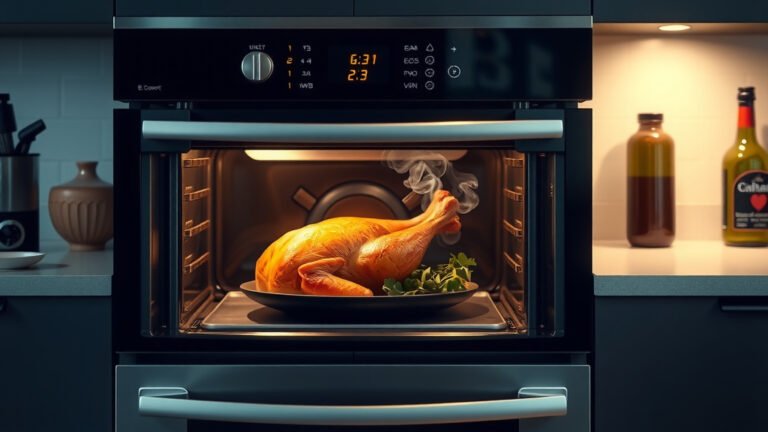
Imagine perfectly roasted chicken or your signature cookies baking with just one tap. Saving your go-to programs on a smart oven means less fiddling with settings. It brings ease and consistency to your kitchen routines, making cooking more enjoyable.
Benefits of Programmed Cooking
When you save your favorite cooking programs, you’re investing in convenience. We found several key advantages:
- Time-Saving: No need to manually input temperature, time, and mode for common dishes.
- Consistent Results: Every time you use a saved program, your dish cooks under the exact same conditions. This often leads to better-tasting food, consistently (Good Housekeeping Institute).
- Reduced Errors: Fewer manual inputs mean less chance of setting the wrong temperature or cooking time.
- Stress Reduction: Knowing your oven has the perfect settings stored takes away guesswork, especially on busy weeknights.
- Empowered Cooking: You feel more in control of your cooking, leading to greater kitchen confidence.
Understanding Your Smart Oven’s Interface
Smart ovens come in various designs, but most use one of two main control methods. Knowing yours helps you navigate the features. Understanding these interfaces is the first step to mastering your appliance.
Touchscreen Controls
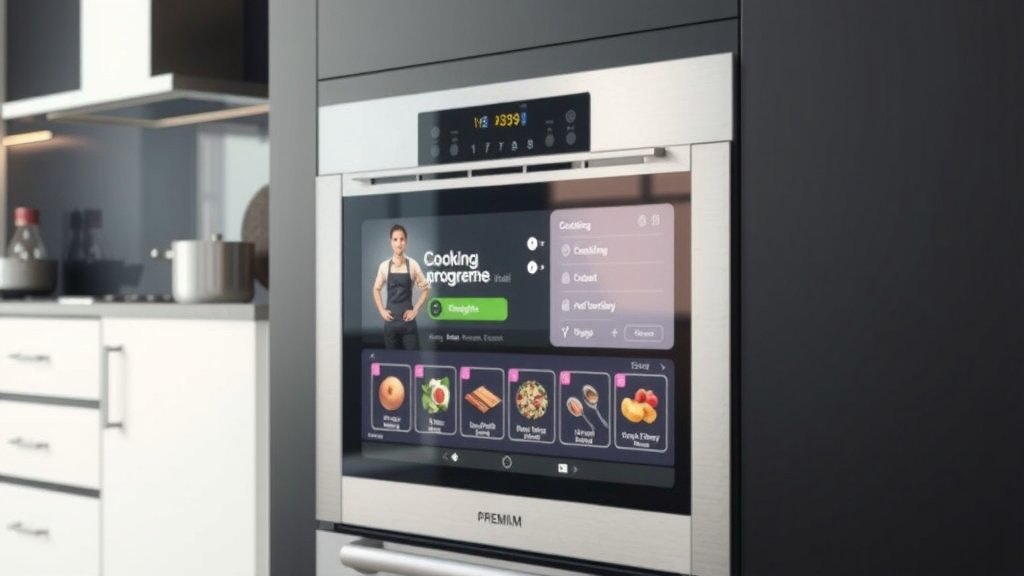
Many modern smart ovens feature a responsive touchscreen, much like your smartphone. These screens offer clear icons and menus. You’ll tap, swipe, and select your way through different functions, including program saving. It’s often very intuitive to use.
Companion Mobile App
Almost every smart oven has a dedicated app you can install on your phone or tablet. This app lets you control the oven remotely and access advanced features. Many users find the app to be easier for detailed programming (Consumer Reports).
Step-by-Step Guide to Saving Programs
Ready to store your first favorite recipe? We’ve outlined the general steps for both oven and app interfaces. While specific button names might vary, the core process remains similar across most smart oven brands.
Via Your Oven’s Display
This method involves direct interaction with your oven’s built-in controls. It’s perfect when your phone isn’t handy. Just remember, your oven needs to be powered on to start.
Navigating the Menu
Start by finding the “Cooking Programs,” “Recipes,” or “Custom Settings” menu on your oven’s display. This might be a physical button or a touchscreen icon. Look for something that indicates “Preset” or “Favorites” to begin. Think of it as opening a digital cookbook.
Adjusting Settings
Once you’re in the program menu, you can usually choose an existing recipe or create a new one. Set your desired cooking mode (e.g., bake, roast, convection), temperature, and time. Some ovens even let you add preheat instructions or staggered cooking steps. This is where you fine-tune your recipe.
Saving Your Recipe
After adjusting the settings, look for a “Save,” “Add to Favorites,” or “My Programs” button. The oven will prompt you to give your new program a name. Choose something clear and easy to remember, like “Perfect Roast Chicken” or “Grandma’s Cookies.” Confirm your selection to store it. You’ve now created a custom program!
Here’s a quick checklist to make sure you’ve covered all the steps:
- [ ] Turn on your smart oven.
- [ ] Locate the program or recipe menu.
- [ ] Select an existing recipe or create a new custom one.
- [ ] Input your desired cooking mode, temperature, and time.
- [ ] Tap the “Save” or “Add to Favorites” button.
- [ ] Give your program a clear, memorable name.
- [ ] Confirm your saved program.
Using the Smart Oven App
Many find the mobile app a more comfortable way to manage programs due to its larger screen. It gives you flexibility to program from anywhere in your home. Ensure your oven is connected to Wi-Fi and synced with the app.
Opening the App
Launch your smart oven’s dedicated app on your smartphone or tablet. Make sure you’re logged in and your oven is connected. You should see a dashboard or control panel for your appliance. It’s your oven’s command center in your pocket.
Finding the Program Option
Navigate within the app to find sections like “Recipes,” “Custom Cooking,” or “My Favorites.” Similar to the oven display, you’ll either select an existing template or start from scratch. Tap the option that lets you add or edit a cooking program. We found this section is often clearly labeled with an icon, like a chef’s hat or a star.
Finalizing the Save
Input all your cooking specifics: temperature, time, and cooking mode. Many apps offer more granular control, like adding pauses or pre-heating steps. Once satisfied, hit the “Save” or “Add to Favorites” button. Name your program carefully, then confirm. Your new program is now ready for use!
Tips for Naming Your Favorite Programs
A good name makes your program easy to find and use. Think of names that are descriptive and distinct. We’ve compiled some tips to help you choose the best names for your stored settings.
| Good Naming Strategy | Example Name | Why It Works |
|---|---|---|
| Describe the Dish | “Perfect Salmon Fillets” | Immediately tells you what it’s for. |
| Include Key Settings | “Roast Veggies 400F 30min” | Quickly shows temperature and time. |
| Add Personal Touch | “Mom’s Meatloaf” | Familiar and easy to recall. |
| Specify Oven Mode | “Convection Pizza” | Helpful if you use different modes for similar foods. |
Common Issues and Quick Fixes
Sometimes technology can be a bit quirky. If you run into problems while saving or using programs, don’t worry. Most issues have simple solutions. Let’s look at some common snags you might encounter.
Program Not Saving?
If your program isn’t saving, first check your Wi-Fi connection. A stable internet connection is often required for app-based saves. Also, ensure you’ve followed all prompts, like naming the program. Sometimes, a quick oven or app restart can resolve minor glitches (product support forums often suggest this).
Difficulty Finding Saved Programs?
Are your programs playing hide-and-seek? Try looking under different menu headings like “My Recipes,” “Favorites,” or “User Programs.” If using the app, check the “Smart Cooking” or “Preset” sections. Many brands organize them differently. You might also filter by category if your app offers that feature. It often takes a little searching to discover hidden menus.
Conclusion
Setting your favorite cooking programs on a smart oven is a game-changer for any home cook. It streamlines your kitchen, saves precious time, and ensures consistently delicious results every time you bake or roast. By using your oven’s display or its companion app, you gain a powerful tool for effortless cooking. Take a moment to personalize your oven; you’ll wonder how you ever managed without it. Your smart oven is ready to be your best kitchen assistant.
What if my smart oven doesn’t have a “Save” option for programs?
Some older smart oven models might not have a dedicated “Save” or “Favorite” button. In such cases, you might be limited to using predefined recipes or manually adjusting settings each time. Check your oven’s user manual or manufacturer’s website to confirm its specific capabilities.
Can I edit a favorite program after I’ve saved it?
Absolutely! Most smart ovens and their apps allow you to easily edit saved programs. You typically find an “Edit” option next to your program’s name in the favorites list. This lets you tweak temperatures, times, or cooking modes as needed.
How many favorite cooking programs can I save?
The number of programs you can save varies by brand and model. Some ovens might allow dozens, while others have a more limited capacity. This information is usually detailed in your oven’s specifications or user manual. It’s often more than enough for your most common dishes.
Do saved programs transfer if I get a new smart oven of the same brand?
This depends on whether your oven’s app stores your programs in a cloud account. If your saved programs are tied to your user account within the app, they often can transfer to a new compatible oven after you log in. However, programs saved directly on the oven’s display likely won’t transfer. Always check the manufacturer’s guidelines for such features.
Are there any security concerns with using a smart oven app to save programs?
Using a smart oven app is generally secure, but like any smart device, it’s wise to practice good digital hygiene. Use strong, unique passwords for your app account and keep the app updated. Manufacturers typically implement security measures to protect your data and prevent unauthorized access.