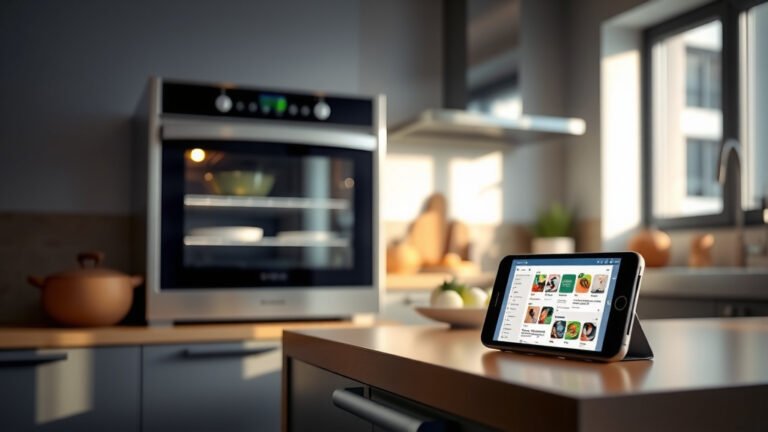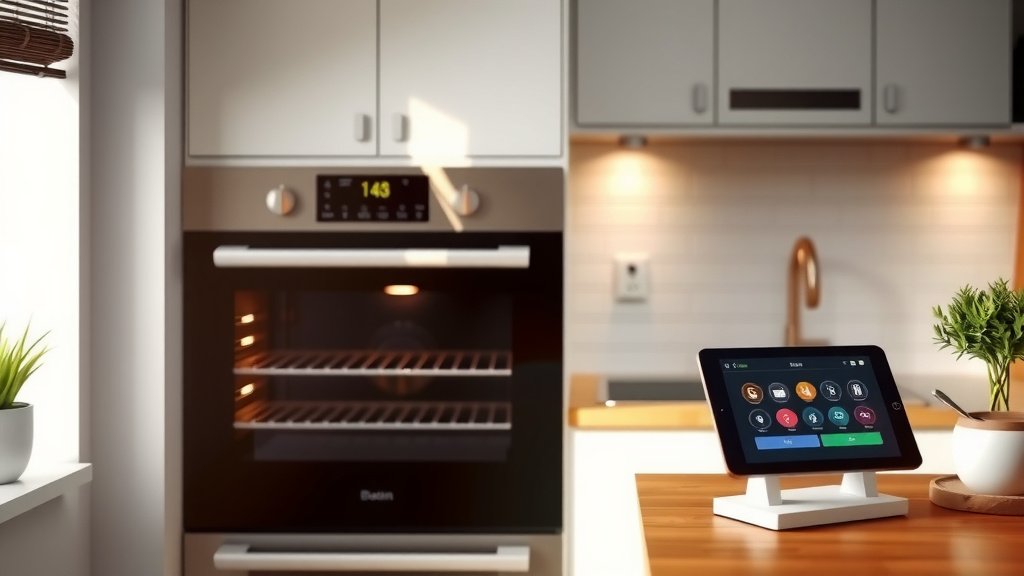
Connecting your smart oven to your smart home system typically involves installing the oven’s dedicated app, linking it to your home Wi-Fi, and then integrating it with your central smart home hub like Google Home or Amazon Alexa.
This setup allows you to control your oven remotely, use voice commands, and automate cooking tasks with other smart devices, making meal prep much smoother.
Here’s a quick overview of what you’ll find in this guide:
- You’ll learn why a connected oven makes life easier.
- We’ll cover the essential items you need before starting.
- You’ll get clear, step-by-step instructions for connecting your oven.
- We’ll explore how to fix common issues if you get stuck.
- Finally, you’ll discover how to get the most from your smart oven features.
How To Connect Smart Oven To Smart Home System?
You connect a smart oven to your smart home system by first ensuring your oven is Wi-Fi enabled, installing its specific app, and then pairing it with your chosen smart home hub for integrated control and automation.
Why Connect Your Smart Oven?
Imagine preheating your oven on the way home from work, or checking if dinner is ready from the living room. Connecting your smart oven offers incredible convenience and peace of mind. Many experts say smart kitchens are the future, and your oven is a big part of that (Consumer Reports).
It’s not just about turning it on. You can adjust temperatures, set timers, and even receive notifications when your food is done, all from your phone. This integration helps you save time and energy, streamlining your daily routine.
What You Need Before Connecting
Before you dive in, let’s make sure you have everything ready. A smooth setup often begins with good preparation. Just like baking a cake, having all your ingredients laid out helps.
Your Smart Oven and Network
First, confirm your oven is indeed a “smart” model with Wi-Fi capability. You’ll also need a strong, stable Wi-Fi signal in your kitchen. We found that a weak signal is a common cause of connection issues.
Make sure you know your home Wi-Fi network name (SSID) and password. Keep these handy, as you’ll need them during the setup process to link your appliance.
Smart Home Hub
Do you use Amazon Alexa, Google Home, or perhaps Apple HomeKit? Your smart oven needs a way to talk to your other devices. This is where your central smart home hub comes in. Some ovens might connect directly to a voice assistant, while others might need a specific bridge or skill.
We found that most modern smart ovens are designed to work with popular ecosystems. Check your oven’s manual to see which platforms it supports, as this will guide your integration steps.
Manufacturer’s App
Every smart oven brand has its own dedicated smartphone app. Think of it as the command center for your appliance. You’ll need to download and install this app on your phone or tablet.
This app is usually where you’ll first connect your oven to your home Wi-Fi. It’s a critical first step before you even think about integrating it with your broader smart home system.
Step-by-Step Connection Guide
Ready to get cooking with technology? Here’s a simple guide to get your smart oven talking to your smart home. Just follow these steps, and you’ll be controlling your oven remotely in no time.
Power Up and Connect to Wi-Fi
First things first: plug in your smart oven. Once powered, you’ll typically find a network or Wi-Fi setup option in the oven’s display menu. Follow the on-screen prompts to connect it to your home Wi-Fi network using your password.
This might involve a few button presses or using a companion app to push the Wi-Fi credentials. Take your time here; a solid Wi-Fi connection is the foundation of smart functionality.
Install the Oven’s App
Download the specific app for your oven brand from your device’s app store (e.g., Samsung SmartThings, GE SmartHQ). Create an account or sign in. Then, within the app, follow the instructions to “add a device” or “pair a new appliance.” The app will guide you through finding and linking your oven.
This step usually involves confirming the oven’s status or scanning a QR code on the appliance. The manufacturer’s app acts as the direct bridge to your oven, letting you control it.
Link to Your Smart Home Hub
Now that your oven is connected to its own app, it’s time to bring in your smart home hub. Open your smart home hub app (Google Home, Alexa, etc.). Look for an option to “add a device” or “add a service.” You’ll then search for your oven’s brand or its associated skill/service.
You will likely be prompted to log in with your oven manufacturer’s app credentials. This links the two platforms, allowing your smart home hub to recognize and control your oven. Here’s a quick look:
| Smart Home Hub | How to Link Your Oven |
|---|---|
| Amazon Alexa | Enable the oven’s “Skill” in the Alexa app, then link accounts. |
| Google Home | Add a “Works with Google” device and select your oven’s brand. |
| Apple HomeKit | Look for “Add Accessory” in the Home app, sometimes requires a hub or bridge. |
| Samsung SmartThings | Add a new device directly within the SmartThings app, then find your oven. |
Test the Connection
Once linked, it’s time for the moment of truth! Try a simple command. Ask Alexa or Google to “Preheat the oven to 350 degrees” or use your smart home app to turn it on. If it works, congratulations! You’ve successfully integrated your oven.
If not, don’t worry, troubleshooting is next. Often, it’s a small setting you might have missed. Patience is key when dealing with new tech.
Common Connection Issues and Fixes
Even with clear instructions, sometimes things don’t go perfectly. We found that most problems are easily solved. Here are some common hiccups and how to get past them:
- Weak Wi-Fi Signal: Is your oven too far from your router? Consider a Wi-Fi extender or moving your router closer. A strong signal is essential for reliable control.
- Incorrect Wi-Fi Password: Double-check your Wi-Fi password. It’s easy to type it wrong. This is a very frequent point of error.
- Oven Not in Pairing Mode: Some ovens require you to put them into a specific “pairing” or “connect” mode before they can be discovered. Refer to your oven’s manual for exact steps.
- App Login Issues: Ensure you’re using the correct login details for both the oven’s app and your smart home hub app. Forgotten passwords can be reset, which helps get you back on track.
- Router Settings: Your router might have security settings (like a firewall) blocking new devices. Sometimes, disabling “AP Isolation” can help, as researched by many tech guides.
- Firmware Updates: Make sure both your oven and your smart home hub are running the latest firmware. Updates often fix bugs and improve compatibility.
Making the Most of Your Connected Oven
So, your smart oven is connected. What now? The real fun begins with exploring its features. You can set cooking routines, monitor food from anywhere, and even get recipe suggestions tailored to your appliance.
Consider creating scenes or routines in your smart home app. For example, “Dinner Time” could turn on kitchen lights, start the oven, and play your favorite cooking playlist. These automations truly streamline your kitchen experience.
Security Considerations for Smart Appliances
With great connectivity comes the need for great security. Protecting your smart oven, like any other smart device, is important. Many experts suggest using strong, unique passwords for your oven’s app and Wi-Fi.
Regularly check for firmware updates, as these often include security patches. Always buy smart appliances from reputable brands that prioritize user data and privacy. Think of it like locking your front door; you want your digital home to be secure too.
Conclusion
Connecting your smart oven to your smart home system is a straightforward process that brings a lot of convenience to your daily life. From remote preheating to voice control, a connected oven makes cooking more flexible and enjoyable. By following these steps and keeping a few troubleshooting tips in mind, you’ll be enjoying a smarter kitchen in no time. Embrace the ease and efficiency that smart technology brings to your home.
How do I connect my Samsung smart oven to SmartThings?
To connect your Samsung smart oven to SmartThings, first download the SmartThings app and create an account. Then, ensure your oven is powered on and in pairing mode. In the SmartThings app, tap the “Add device” button, select your oven from the list, and follow the on-screen instructions to complete the Wi-Fi and app connection. You might need to confirm the connection on the oven’s display.
Can I control my smart oven with Google Assistant or Amazon Alexa?
Yes, most modern smart ovens are designed to integrate with popular voice assistants like Google Assistant and Amazon Alexa. After connecting your oven to its manufacturer’s app, open your Google Home or Alexa app, then add the oven’s brand as a “Works with Google” device or enable its “Skill.” This links your accounts and allows voice commands.
What if my smart oven won’t connect to my home Wi-Fi?
If your smart oven isn’t connecting to Wi-Fi, check a few things: ensure your Wi-Fi password is correct, confirm your oven is within range of your router, and try restarting both your oven and router. Also, verify your oven is in the correct Wi-Fi pairing mode, as per its manual. A weak signal is a common problem we found, so consider a Wi-Fi extender if needed.
Is a smart home hub required for my smart oven?
Not always, but it often simplifies things. Many smart ovens can connect directly to their manufacturer’s app and offer basic remote control. However, a smart home hub like Google Home or Amazon Alexa allows for voice control and integration with other smart devices, creating automated routines. It enhances the “smart” aspect significantly.
Can I preheat my smart oven when I’m away from home?
Yes, that’s one of the best features of a smart oven! As long as your oven is connected to your home Wi-Fi and its dedicated app, you can use the app on your smartphone to remotely preheat it from virtually anywhere with an internet connection. This convenience means your oven can be ready to cook by the time you walk in the door.